topviewt1ai.org

Free Topview T1 AI Video Generator

Describe your scene or upload an image. Bring your idea to life.

AI Model
Kling 2.5 TurboText and image to video · 5 or 10 seconds
Try a subject, a setting, and a camera movement.0 / 2,000
Follows your source image

Creative inspiration

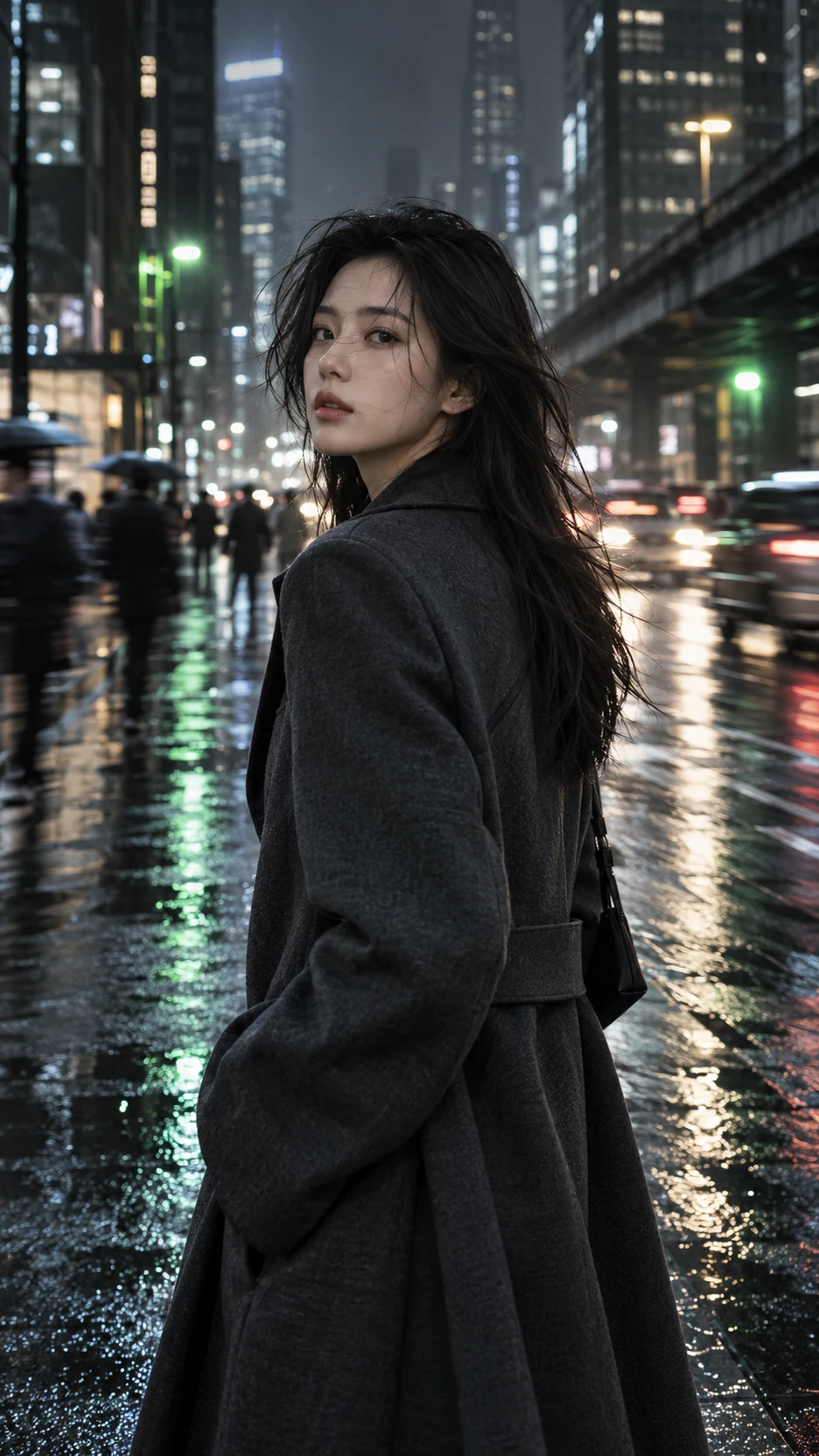
An original cinematic portrait of a woman in a charcoal coat on a rain-soaked city street.

What Is topviewt1ai.org?

topviewt1ai.org brings text-to-video and image-to-video into one workspace. Start with a scene you can describe or an image you already have, then add the action and camera direction for a short clip. Your creations stay together in a personal video library.

Explore the workflow locally with clearly labeled sample results. When the generation service is connected, the workspace uses Kling 2.5 Turbo for real video creation. Choose a five- or ten-second clip and check its credit cost before submitting your idea.

How to Create with topviewt1ai.org

  1. Pick a prompt or a picture.

    Choose text-to-video to sketch a scene in words: who or what is there, where it happens, and what the subject does. If a photograph or illustration already captures your idea, select image-to-video and upload it as the starting frame.

  2. Give the scene a direction.

    Describe a movement that fits the shot. A curtain might lift in a breeze while the camera stays fixed, or the camera might approach a still object. With an uploaded image, focus on what should change rather than describing every detail again.

  3. Preview, then refine.

    Set the duration, review the displayed credit cost, and submit your clip. Watch the whole result in your library before deciding what to change. In local demo mode, this step saves a sample video so you can explore the flow without using paid generation.

Prompt tip: Name the subject action and camera action separately. A flower opening in a fixed shot is a different request from a camera circling a flower that stays still.

Create from Text or an Image with topviewt1ai.org

Begin with the part of your idea you already know. A written scene gives you room to imagine; a reference image gives you a visual place to start.

Turn a written idea into a scene

Describe an empty train platform at sunrise, a kite moving above the dunes, or a lantern drifting across a lake. Text-to-video gives you a way to explore a scene before you have a photograph. Keep the main subject and action clear, then add lighting or camera direction.

Add movement to a still image

Use a photograph or illustration to establish the subject and framing. Then ask for a small action: leaves stirring beside a window, for example, or a gentle camera approach. The image guides the video, but generated details can change, so review the result against your reference.

Try another take on your idea

Explore a different mood by changing one part of the shot. Compare a fixed view with a slow camera move, or a subtle action with a more noticeable one. Each generation is a new interpretation; use the preview to judge which take fits your project.

What You Can Make with topviewt1ai.org

A short clip can become a building block for something larger. Start with a simple subject and a single action, then bring the result into your own editing workflow.

Product presentation clips

Start from a photo of an object and explore a short presentation: light moving across a glass bottle, or a small plant beside a softly moving curtain. Check the item’s shape, colors, and branding before using the result in a promotion, because generated footage can alter visual details.

Visual moments for social posts

Give a food photograph, hand-drawn scene, or simple written idea a small moment of motion. Focus the clip on an action that is easy to follow at a glance. Add captions, music, and promotional text in your editor after choosing the take you want to use.

Early sketches for a story

Explore the atmosphere of a scene before filming or assembling a full sequence. Describe a person pausing beneath a streetlight, or animate an illustration of a quiet room. Use the clip to consider pacing, framing, and mood before developing the next part of the story.

topviewt1ai.org Prompt Tips for Text and Images

Think of a prompt as a brief for one shot. These examples are writing ideas to adapt, not claims about tested outputs or guaranteed results.

For text, set up one clear scene.

Introduce the subject, its action, and its surroundings. Add a simple camera direction and lighting detail when they help explain the shot:

A yellow kite drifts above pale sand dunes in a light breeze. The camera holds a wide, steady view. Warm late-afternoon light casts long shadows along the ridges.

For an image, focus on the motion.

Let the uploaded image establish the composition. For a photograph of a vase by a window, describe the movement you want to introduce:

The flowers sway gently as the curtain moves in the breeze. Keep the vase still on the windowsill. The camera moves slowly closer without changing its angle.

Change one direction at a time.

If the first result misses your idea, identify the most visible issue. Keep the subject and setting, then adjust only the action or camera request. Comparing small variations makes it easier to decide which instruction improves the scene.

topviewt1ai.org FAQ

Can I try topviewt1ai.org for free?

The local demo lets you explore the creation flow and save sample videos without a payment or credit charge. Samples are labeled and are not generated from your prompt. Real generation becomes available after a service is connected and uses the credit amount shown in the workspace.

Should I choose text-to-video or image-to-video?

Use text when the scene is still an idea you need to describe. Use an image when you already have a subject and composition to start from. A reference can guide the result, but it does not guarantee that every shape, label, or detail will stay unchanged.

How should I compare video model results?

This workspace is configured for Kling 2.5 Turbo when real generation is enabled. To compare it with another model, try the same shot description and look at motion, subject detail, and prompt adherence. Check the actual credit cost too; local demo samples do not establish model quality or performance.

What can I change when a result misses my idea?

Start with one visible problem. If too many things move, specify the main action and which objects should stay still. If the camera direction is unclear, simplify it. Keep the remaining prompt consistent so you can assess the effect of the change on your next attempt.

Create Your First Clip with topviewt1ai.org

Bring a written scene or an image to the workspace and give it one clear movement. Explore a product close-up, a social post idea, or a moment from a story. Start with the demo, review the preview, and decide where your idea should go next.

Try the Video Workspace